Print PDF Files in Java
Silent server-side printing, page ranges, scaling and full printer control — in pure Java
How to Print a PDF in Java
Java's own Print Service API has no idea what a PDF is. JPedal fills that gap: it turns a PDF into something Java can print, then hands you the printer, page range, scaling and paper size controls on top. Pure Java 17 and above, with no third-party dependencies, no native binaries and no external print drivers to install. Three lines to get started.
PrintPdfPages print = new PrintPdfPages("inputFile.pdf");

if (print.openPDFFile()) {
    print.printAllPages("Printer Name");
}
PrintPdfPages print = new PrintPdfPages("inputFile.pdf");
if (print.openPDFFile()) {
// page numbering starts at 1
print.printPage("Printer Name", 1);
}# Print page 1 of a document
java -jar jpedal.jar --print "inputFile.pdf" PRINTER_NAME 1
# Print the whole document
java -jar jpedal.jar --print "inputFile.pdf" PRINTER_NAMEPrintRequestAttributeSet attributeSet = new HashPrintRequestAttributeSet();
// every printer available to the JVM
PrintService[] services = PrintServiceLookup.lookupPrintServices(
DocFlavor.SERVICE_FORMATTED.PAGEABLE, attributeSet);
PrintService printingDevice = null;
for (PrintService s : services) {
System.out.println(s.getName());
if (s.getName().equals("Microsoft XPS Document Writer")) {
printingDevice = s;
}
}PdfDecoder decodePdf = new PdfDecoder(true);
decodePdf.openPdfFile("inputFile.pdf");
// print pages 2-5 only
decodePdf.setPagePrintRange(new PageRanges("2-5"));
// or odd pages only, even pages only, or in reverse order
decodePdf.setPrintPageMode(PrinterOptions.ODD_PAGES_ONLY);PdfDecoder decodePdf = new PdfDecoder(true);
decodePdf.openPdfFile("inputFile.pdf");
// rotate and centre each page to best fit the paper
decodePdf.setPrintAutoRotateAndCenter(true);
// PAGE_SCALING_NONE, PAGE_SCALING_FIT_TO_PRINTER_MARGINS
// or PAGE_SCALING_REDUCE_TO_PRINTER_MARGINS
decodePdf.setPrintPageScalingMode(PrinterOptions.PAGE_SCALING_FIT_TO_PRINTER_MARGINS);
// use the PDF's own page size instead of the printer's paper size
decodePdf.setUsePDFPaperSize(true);// 1. open the PDF (use openPdfFile(file, password) for encrypted files)
PdfDecoder decodePdf = new PdfDecoder(true);
decodePdf.openPdfFile("inputFile.pdf");
FontMappings.setFontReplacements();
// 2. set the print attributes
PrintRequestAttributeSet attributeSet = new HashPrintRequestAttributeSet();
attributeSet.add(new JobName("Example Print", null));
attributeSet.add(new Copies(2));
attributeSet.add(Chromaticity.MONOCHROME);
decodePdf.setPagePrintRange(1, decodePdf.getPageCount());
// 3. pick a printer (see the "Find printers" tab)
PrintService printingDevice = PrintServiceLookup.lookupDefaultPrintService();
// 4. wrap the PDF in a Pageable
PdfBook pdfBook = new PdfBook(decodePdf, printingDevice, attributeSet);
SimpleDoc doc = new SimpleDoc(pdfBook, DocFlavor.SERVICE_FORMATTED.PAGEABLE, null);
// 5. print it
DocPrintJob printJob = printingDevice.createPrintJob();
printJob.print(doc, attributeSet);Java PDF printing, with the control you actually need
JPedal extends Java Print Services with the PDF print modes you would expect from Acrobat — over 50 combinations in total.
| Feature | What it does | Tutorial |
|---|---|---|
| Ways to print a PDF in Java | ||
| Print from Java | Open a PDF and send the whole document, or a single page, to any printer available to the JVM. | Print a PDF file in Java |
| Print from the command line | Print with java -jar jpedal.jar --print, callable from Python, Node.js, C# or a shell script. |
Print a PDF file from the command line |
| Silent server-side printing | Print with no dialog and no user interaction, for batch jobs and server applications. | Server-side and headless printing |
| Client-side print dialog | Use the standard Java print dialog, or JPedal's Acrobat-style print panel with a live preview of the output. | Print PDF files in the Viewer |
| Control the print job | ||
| Printer selection | List every printer available to the JVM through Java Print Service and target one by name. | Find a printer |
| Page ranges | Print a range such as 2-5, only the odd pages, only the even pages, or the whole document in reverse. | Printing a range of pages |
| Page scaling | Fit to printer margins, reduce to printer margins, or no scaling at all, with optional auto-rotate and centre. | Setting scaling |
| Paper size | Define your own paper sizes, or use the PDF's own page size as the paper size instead of the printer default. | Setting PDF page size |
| Monochrome printing | Print in black and white using the standard Java Chromaticity attribute. |
How do I print in monochrome? |
| Fast draft print modes | Substitute Java fonts for standard PDF fonts to cut the data sent to the printer — a big win on PCL and low-resolution devices. | Reducing PDF printing size and speed |
| Encrypted PDF files | Print password-protected documents by setting the password before the file is opened. | Printing encrypted PDF files |
| Customise the printed output | ||
| Over-printing | Draw your own objects, such as a watermark or copyright notice, on top of the printed output. | Adding objects to a printed page |
| Custom form printing | Replace PDF form components with your own versions at print time via the CustomFormPrint interface. | Printing PDF forms using custom code |
Printing PDFs from a server or batch job
Most Java PDF printing problems are server problems: an invoice run that has to go to a warehouse printer at 3am, with no display, no user to click OK, and no tolerance for a hung dialog.
JPedal prints silently with no user intervention, inside your own JVM. There is no external process to launch, no Ghostscript or Acrobat install to manage on the host, and no native binary to match to the platform — so the same code runs on a developer laptop, a Linux container, and a cloud VM. Configure the JVM for headless mode where there is no display.
Printing from a Java desktop application
If your users need to print, the JPedal PDF Viewer ships with a ready-made print panel you can drop in — or you can drive the same API from your own UI and skip the dialog entirely.
Access controls are part of the same library, so an application that must honour a document's permissions can disable printing outright.
Printing is one part of JPedal. The same jar also handles PDF rendering to image, content extraction, page manipulation and document processing.
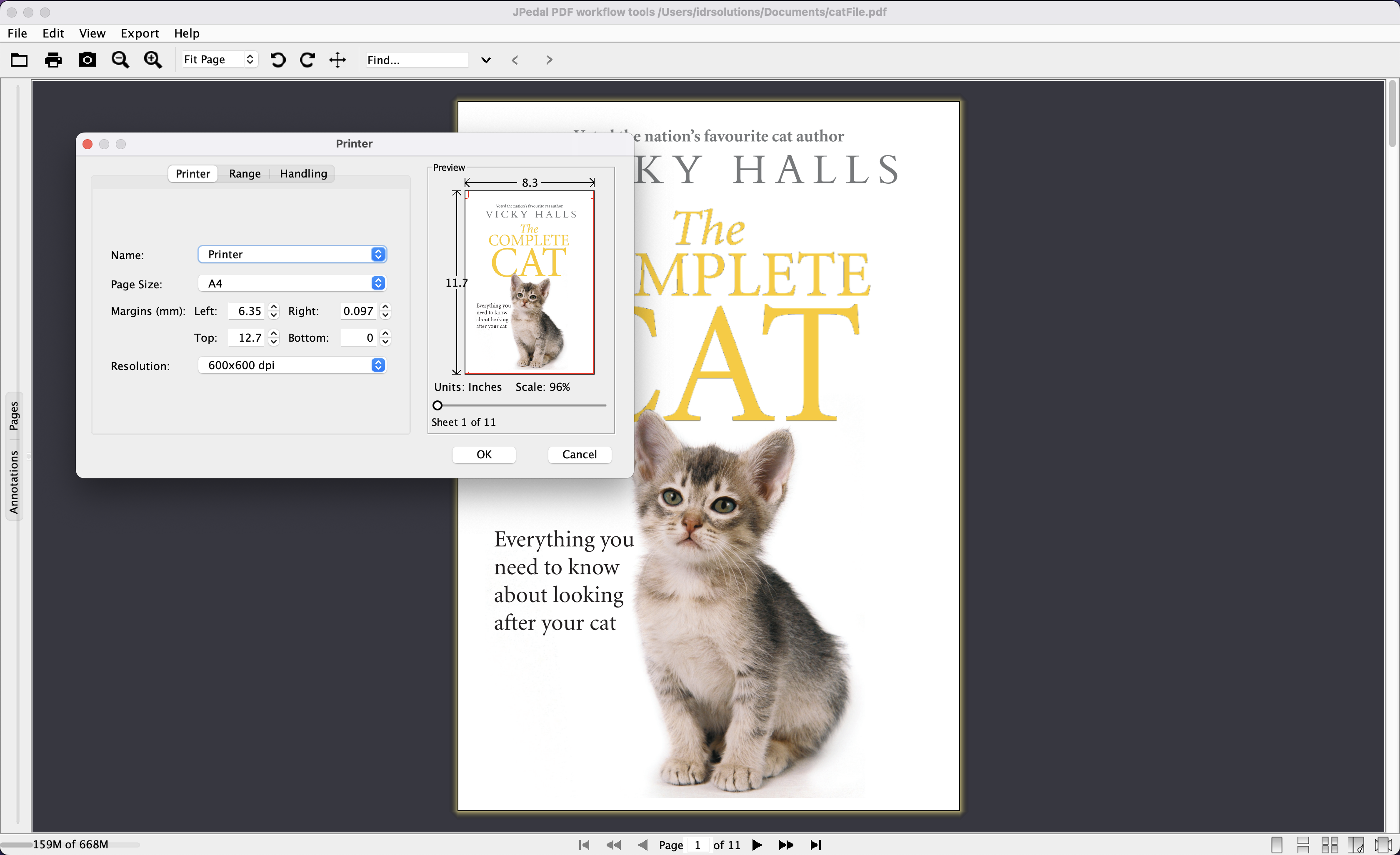
Print PDF files from the JPedal Viewer
JPedal can print PDF files directly from the JPedal Java PDF Viewer.
- Select any available printer
- Preview output in GUI window
- Specify the scaling, page margins and resolution
- Choose any page range including odd or even pages or any sequence.
- Print in grayscale
- Print in fast draft mode
- Choose paper source by PDF page size
JPedal has the advantage of running in the same Java virtual machine, so we save a lot of CPU resources.
- T. Büngener (Software Architect InSign)








Frequently asked questions
How do I print a PDF file in Java?
Open the file with PrintPdfPages.openPDFFile(), then call printAllPages() with a printer name, or printPage() for a single page. PrintServiceLookup.lookupPrintServices() lists the printer names available to the JVM.
Can JPedal print PDF files silently on a server?
Yes. Server-side printing runs with no dialog and no user interaction, so it works inside a batch job or web application. Set the JVM to headless mode where there is no display.
Can I print a PDF that is not on disk, such as a database BLOB?
Yes. PrintPdfPages takes a byte[] as well as a file path, so a PDF generated in memory or read from a database or HTTP response prints without being written to a temporary file. Call setPassword() first for encrypted files.
Do I need Adobe Reader, Ghostscript, or a print driver installed to print with JPedal?
No. JPedal extends Java Print Services in pure Java on Java 17 or above. No third-party libraries, no native binaries, no external print drivers.
Can I print only a range of pages, or only the odd or even pages?
Yes. setPagePrintRange() takes a range such as 2-5, and setPrintPageMode() takes PrinterOptions.ODD_PAGES_ONLY or EVEN_PAGES_ONLY. Pages can also print in reverse order.
Add Java PDF Printing to Your Application
JPedal is absolutely easy to use and it provided the best results of all libraries we tested over the years. We need to create renditions of PDF files so that people can view them conveniently in the browser.
- Roman K. (Developer at German Digital Big Data Platform)
Support for JPedal is done extremely well and for continuously using the software, what the customer needs is good support for the issues we face. And it is superb in that respect.
- Developer (Large Multinational Corporation)